About Microsoft Office
This Microsoft Office listing covers Office Home 2024, the Microsoft suite sold as a one-time purchase for one computer and non-commercial use. It includes the classic applications Word, Excel, PowerPoint and OneNote. In the category, it meets the needs of writing, calculation, presentation and note-taking at home or while studying. The version described here installs on Windows and requires a Microsoft account to associate the purchase and manage the installation.
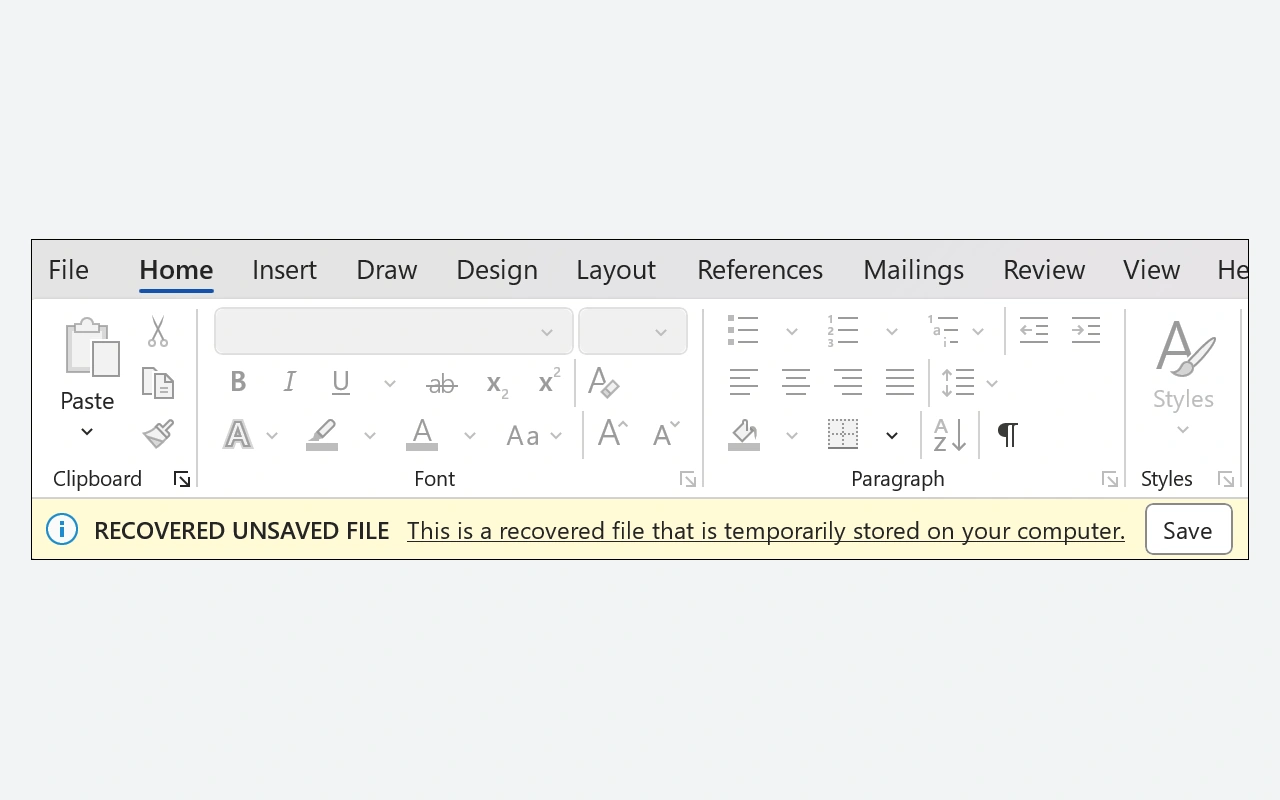
Word is for structured documents, Excel for tables and calculations, PowerPoint for slides, and OneNote for organized notes. One benefit of the suite also lies in the consistency of these tools and the formats commonly used for exchanges. The 2024 license should not, however, be confused with a Microsoft 365 subscription: it does not promise all of its connected functions or the next major versions. You can work on local files after installation, with a connection required for activation and periodic checks provided by Microsoft. Before purchasing, compare the applications included, the number of authorized computers and the context of use. A family that shares a computer does not necessarily have the same needs as a person equipped with several computers.
Choose the application for your document
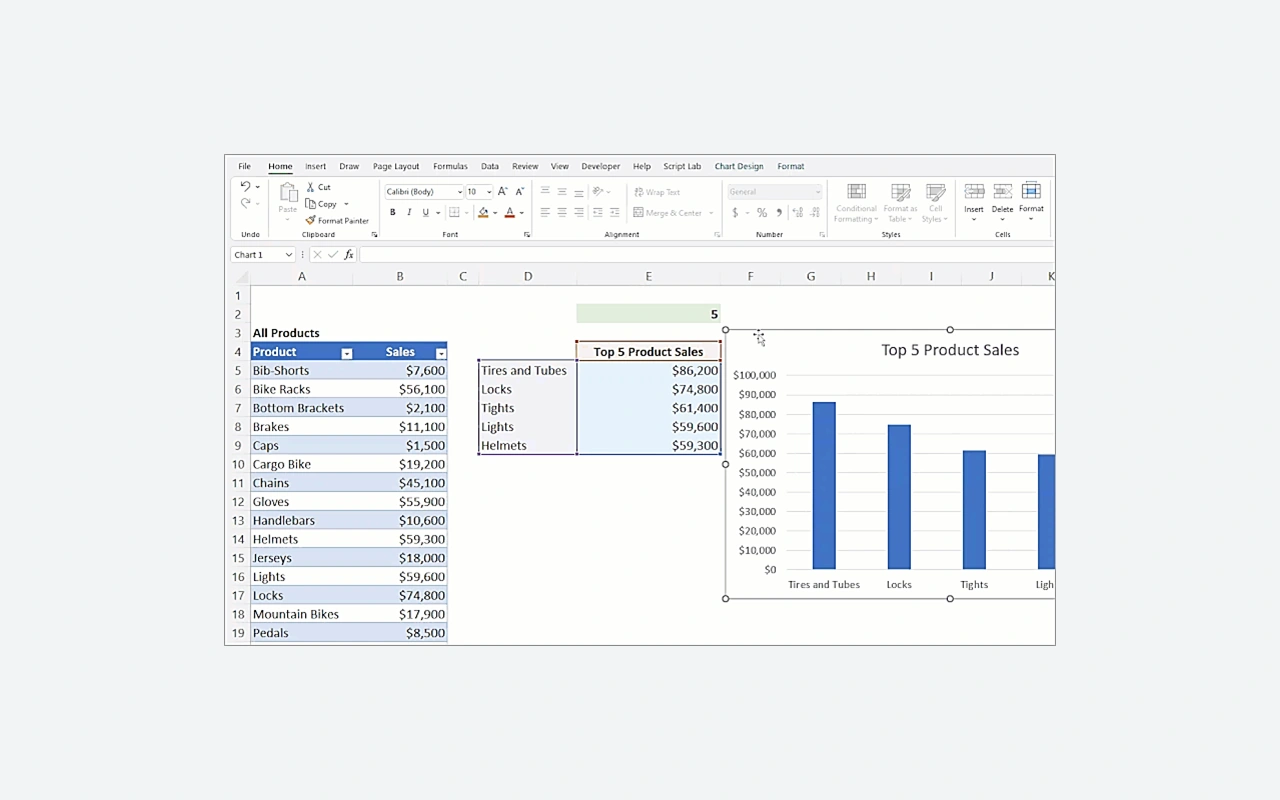
Word is suitable for a letter, report or text that requires styles and pagination. Excel allows you to structure data and link calculations in a workbook. PowerPoint organizes presentation slides, while OneNote groups notes into notebooks and sections. Start in the application corresponding to the end result rather than forcing a table into an unsuitable tool. You can then swap certain elements between documents, checking if they are pasted as an image, as editable content, or with a link. This distinction influences updates and how the recipient will be able to resume your work.
Understand the one-time purchase
Office Home 2024 corresponds to a license for one computer and applications of this generation. A one-time purchase does not mean that all future major releases will be provided without a new purchase. It also does not replace the services and rights of a Microsoft 365 subscription. The Home edition is advertised for non-commercial use; If your business requires different licensing rights, review the appropriate offer before paying. Keep proof of purchase and the account the license is associated with. This information is used to locate the installation and resolve activation questions during a reinstallation or authorized hardware change.
Install from the account linked to the license
After purchasing or associating a valid key, use the applicable Microsoft account to find the product in Services & Subscriptions. The installer downloads the necessary components and prepares the applications. A connection is therefore required during this step. When launched for the first time, log in with the account that has the right of use and follow the activation instructions. If multiple accounts are used on the same computer, check which one actually holds the license. An existing application does not prove that it corresponds to your purchase. Previous installations and special add-ons may require verification before choosing the appropriate variant.
Prepare files for exchange
DOCX, XLSX and PPTX formats are common, but the recipient may use another version or suite. Before an important file exchange, review the fonts, formulas, and embedded objects. For reading without modification, a PDF export can stabilize the presentation. For a collaborative document, agree on the format and tools used to reduce successive conversions. Macros and add-ins introduce additional dependencies that must be tested separately. Keep a copy of the source document and give meaningful names to the versions sent. This will avoid confusing a reading copy with the file which still contains all the modifiable elements.
Plan local work and required connections
Desktop applications allow you to work on locally saved files. So you don't need a permanent connection for every writing or calculation operation. Microsoft, however, requires the Internet for installation, activation and periodic checks. Functions that use online services also depend on their availability and associated rights. Explicitly choose where to save your documents and make sure you can find them offline if necessary. A synchronized file may have a different state than a copy that is entirely on disk. Also plan for independent backup of important documents, because the suite license does not constitute a backup strategy.
Compare the suite against your actual needs
LibreOffice is a free alternative that brings together word processing, spreadsheets and presentations. It can open many Microsoft Office formats, but complex documents require a compatibility check. The Microsoft Word, Microsoft Excel and Microsoft PowerPoint listings detail the uses of each application in the catalog. SumatraPDF may be suitable for reading a completed PDF without opening a full suite. To choose, start with a few representative files: a report with styles, a workbook with formulas and a slideshow with media. Compare their rendering and the essential functions, then examine the licensing conditions. The number of included apps is only useful if it matches your usual documents.
Key features
- Word for writing documents with layout
- Excel for organizing tables and calculations
- PowerPoint for building presentations with slides
- OneNote to group and organize your notes
- Desktop applications that can be used with local files
- A one-time purchase for one computer and non-commercial use
System requirements
Windows 11, 64-bit variant: 4 GB RAM and 4 GB disk; 1.1 GHz 2-core processor; Microsoft account and periodic Internet.
Questions and answers
Does Office Home 2024 require a subscription?
No, this edition is sold as a one-time purchase for one computer. It is separate from Microsoft 365 subscriptions. Future major releases are not automatically included in the purchase, and included features or services should be verified for the edition chosen.
Can this edition be used for commercial activity?
Microsoft presents Office Home 2024 for non-commercial use. If you are planning professional use that requires other rights, choose an offer whose conditions cover it. The presence of the same application names does not make all licenses equivalent.
Is internet required every time I open Word?
Local work is possible after installation and activation, without permanent connection for each opening. The Internet is still necessary for installation, activation and periodic checks provided by Microsoft. Documents and functions dependent on online services also require their own access.
Is Outlook included in Office Home 2024?
The described edition includes Word, Excel, PowerPoint and OneNote. Do not assume that an application presented in another Microsoft offering is part of this license. Check the exact list of included apps before purchasing if you need an additional tool.
Does the license allow multiple computers?
Office Home 2024 is licensed for one computer. Transfer options follow the license terms applicable to your purchase; they do not constitute a right of simultaneous use on several workstations. Check the chosen offer if you need to equip several machines.
How to install
- Buy Office Home 2024 or link your valid key to the intended Microsoft account.
- Open the services and subscriptions for this account then choose the Office installation.
- Download and launch the installer on your Windows computer.
- Wait for the apps to finish downloading and installing.
- Open Word or Excel and activate the suite with the account associated with the purchase.
Appbunda is an independent catalog and is not affiliated with the developer. Product names and logos belong to their owners. Always check the file source before installing.