About MediaMonkey
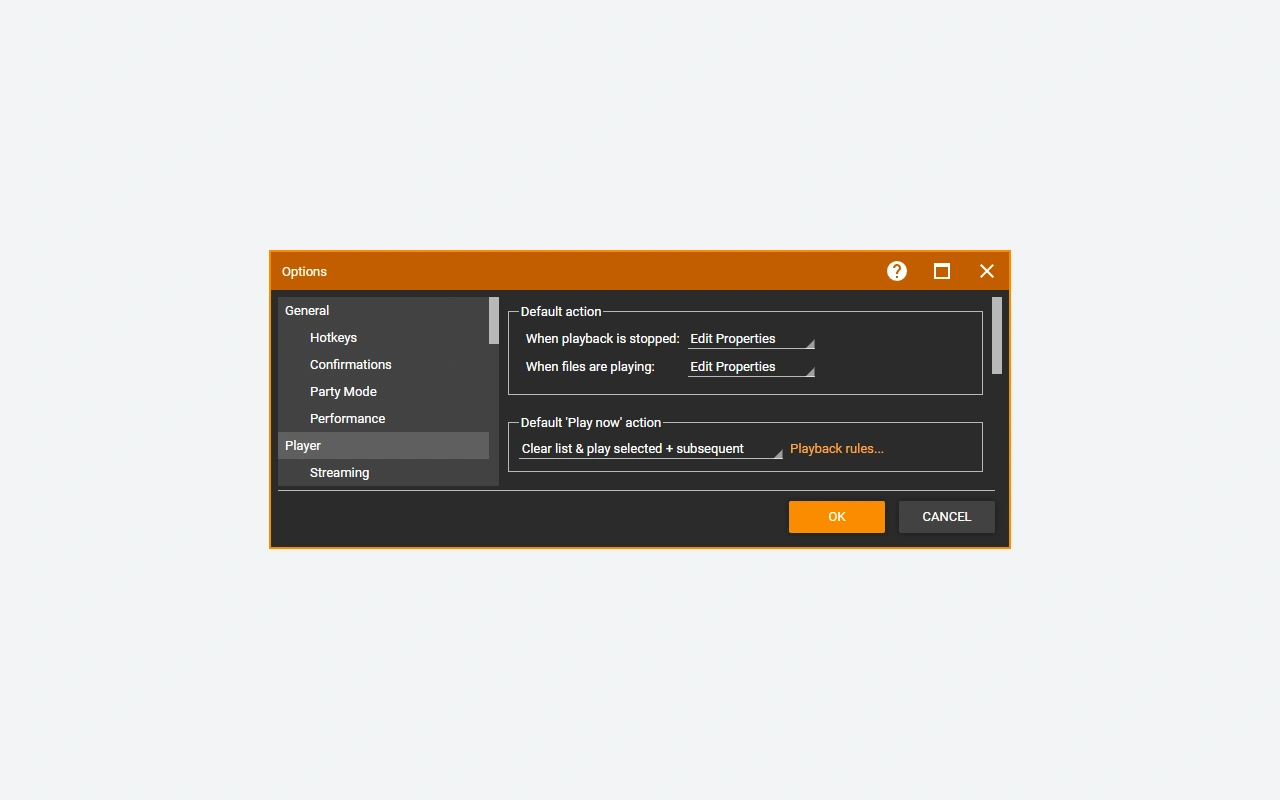
MediaMonkey is a media library manager developed by Ventis Media. It brings together the files in your collection into a catalog where you can browse them by artist, album, genre, or location. The program combines playback with metadata editing and synchronization tools. This category application is offered for Windows in a free Standard version, with additional functions accessible by a Gold license. It is especially suitable for people who have a local collection that they wish to organize and maintain.
The catalog and physical files are related, but they are not the same. A tag change can be written to the media, while a name or folder change affects its location. Understanding this distinction avoids unintentionally reorganizing a collection already used by other applications. MediaMonkey allows you to prepare playlists, review missing information, and transfer media to compatible destinations. Its usefulness increases when files come from several sources and use different conventions. Before automating their classification, a first check on a small set of albums allows you to define a coherent method and preserve the important particularities of your library.
Import a collection while keeping its organization
Select the folders that actually contain your media and let MediaMonkey scan them to build the library. Avoid adding multiple copies of the same collection without knowing which one should remain the reference. The file path helps distinguish between versions with identical tags. Before enabling automatic file organization, set the desired structure for artists, albums, and compilations. A backup of your files and the database protects two different pieces of work. If your collection is on a removable disk, maintain a stable way to find it so that references do not become unnecessarily unfindable.
Edit tags using a consistent convention
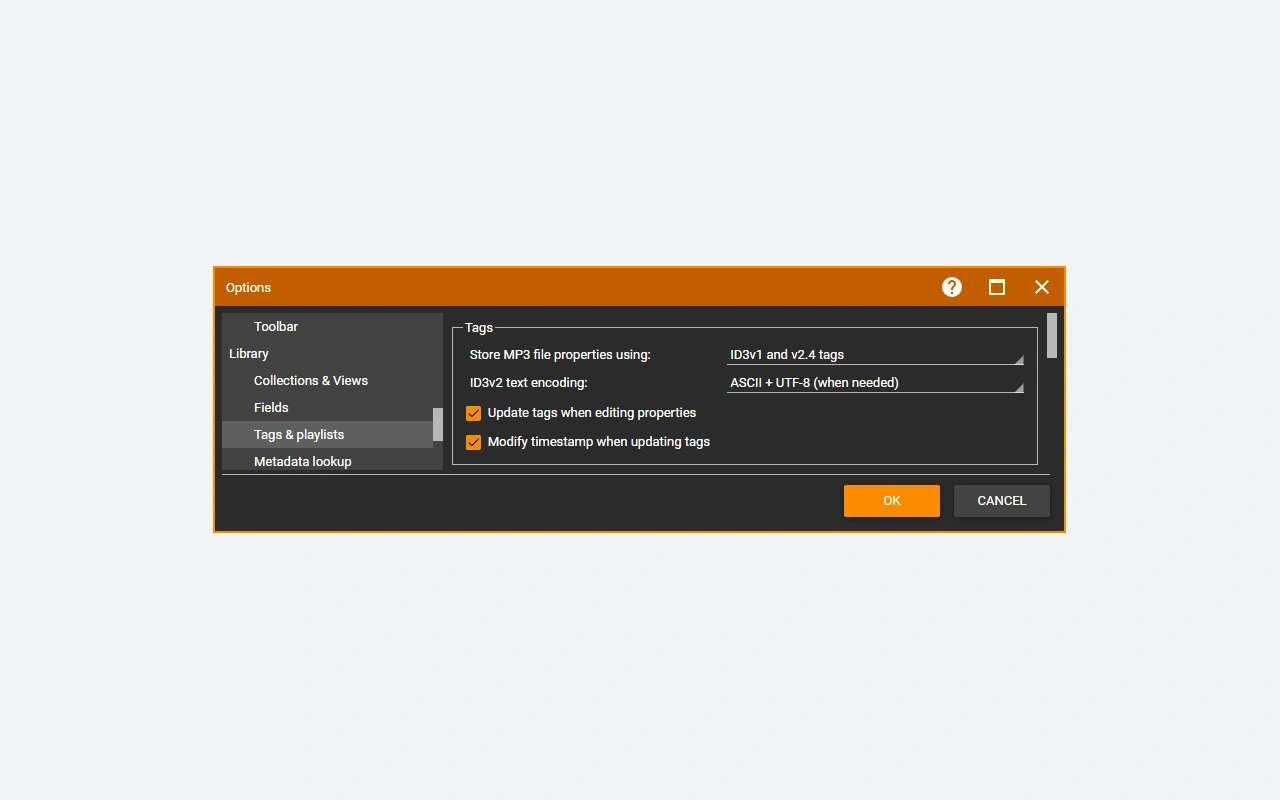
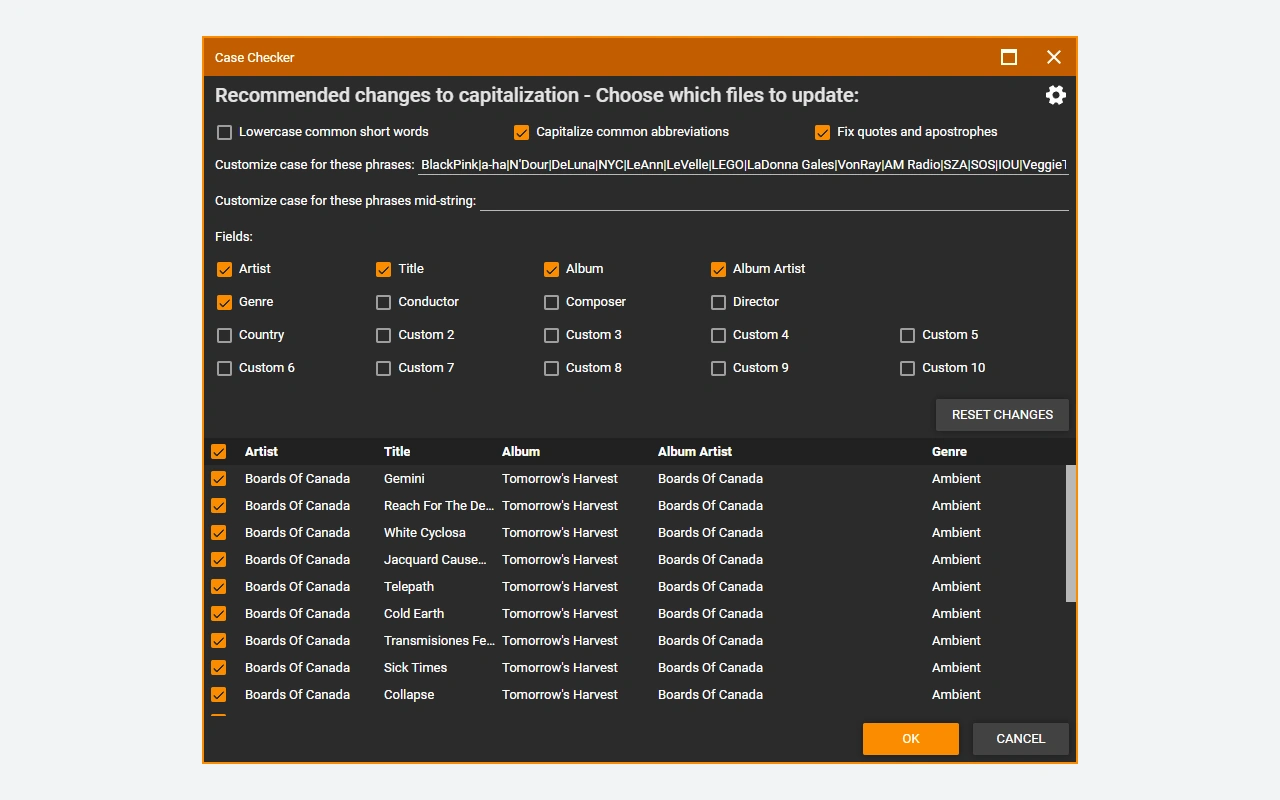
Metadata determines how albums and artists are grouped in the library. A name variation, an empty field or an inconsistent album artist can disperse the same set. Correct the information in small groups and check the result before generalizing a rule. Metadata and artwork searches can help, but they must match the edition actually owned. A compilation and an original album may share some tracks without using the same information. Also look at the disc numbers for the box sets. Consistent tags then make it easier to search, list, and browse across synced devices.
Prepare playlists with consistent listening levels
Playlists are used to group songs for an activity or device without necessarily moving their files. MediaMonkey also provides functions related to volume analysis and leveling playback. Distinguish volume analysis and playback adjustments from operations that change the audio data itself. To verify a result, listen to several tracks from different albums and observe the player's behavior. The pieces maintain their own dynamics, even when their perceived levels get closer. A coherent list is therefore not based only on a number: the listening context and the order of the titles remain important for the desired result.
Check the destination before synchronizing
Sync can transfer selected media to compatible devices and services. Before the first transfer, check the destination folders, the selection rules and any planned deletions. Start with a small list so you can control tags, cover art, and on-device playback. Automatic conversion depends on the capabilities offered by the edition used and the formats concerned. A copy intended for a device may be different from the original held in the library. So have a clear rule for converted versions and monitor the available space, especially if an automatic selection may grow when you add new albums.
Understand what Gold adds to Standard
The Standard version covers basic management and playback, while Gold notably adds more advanced automation and settings. The official page distinguishes automatic organization, some tagging functions, custom collections and conversion or streaming options. Codec components may also have their own limitations; some encoders are advertised with a limited use period without purchase. So compare the functions actually necessary for your library before choosing a license. A Gold license for a given generation and a lifetime license do not cover the same upgrades. Check the license plan displayed at the time of purchase.
Compare library management with direct playback
VLC media player is suitable when you mainly want to open a file or quickly check a video. GOM Player Plus has another commercial player option. MediaMonkey is further distinguished by the catalog, tags and organization of an actively maintained collection. Movavi Video Converter meets a need for media conversion, without replacing the management of a music library. To decide, take a concrete example: find all the songs of an artist, correct a compilation and transfer a list to your device. If these tasks occupy a regular place in your use, the library structure becomes a more useful criterion than just the number of formats announced.
Key features
- Library browsed by artist, album and location
- Editing the tags of several selected files
- Finding metadata and artwork for albums
- Playlists tailored to your music selections
- Synchronization with compatible destinations and devices
- Additional Gold Features to Automate Collection
System requirements
Windows 10 or 11, 32 or 64 bits; 4 GB of RAM; 1 GB of disk available; Multimedia components required for Windows N.
Questions and answers
Is MediaMonkey free or paid?
The Standard version is free and allows you to manage a library and play its media. Gold adds paid features. Some encoders or services also have specific limits; check the features you need before choosing a licensing plan.
Does import move my files automatically?
Scanning adds information to the library, but reorganizing files depends on the commands and rules you use. Check the paths and options before any sorting operation. Start with a small set to understand the proposed changes.
Why does an album appear in several separate pieces?
Tags may contain name variations or different values in the album artist field. Also look at disc numbers and compilations. Consistent correction of this information helps the catalog group tracks from the same set.
Does the Gold license cover all future versions?
The chosen plan matters: the generation license and the lifetime license do not offer the same upgrade coverage. Consult the conditions associated with your purchase. An old license should not be assumed to be valid for each new generation.
Can we synchronize without replacing the originals?
Synchronization can prepare copies for a compatible destination, with options depending on edition and formats. Check the transfer and deletion rules before starting the operation. Keep the original collection and test a limited selection of media first.
How to install
- Download MediaMonkey for Windows from the Ventis Media website.
- Launch the installer and choose the options offered for your installation.
- Open the application then select the media folders to analyze.
- Check the first imported albums before modifying their tags.
- If you have Gold, enter the license in the app.
Appbunda is an independent catalog and is not affiliated with the developer. Product names and logos belong to their owners. Always check the file source before installing.